![InstaKeyPantone&White.png]](https://knowledge.instakey.com/hs-fs/hubfs/InstaKeyPantone%26White.png?height=40&name=InstaKeyPantone%26White.png)
Once you've logged into Security Records, follow the below steps to create scheduled reporting that will be delivered directly to your inbox
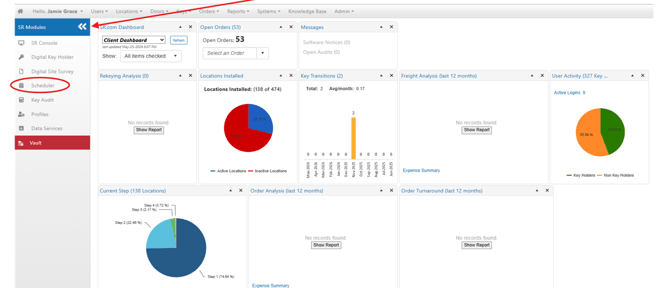
On the Dashboard, Click to expand all Modules. Then, select Scheduler
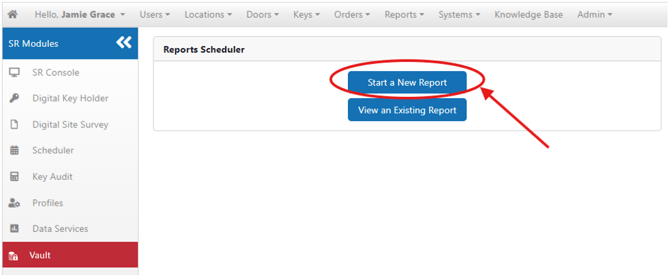
Select "Start a New Report"
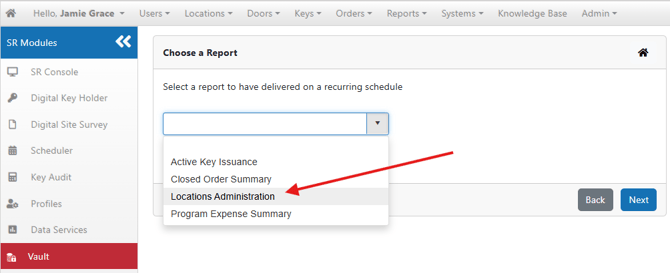
Select "Location Administration" from the Reports dropdown, then click Next
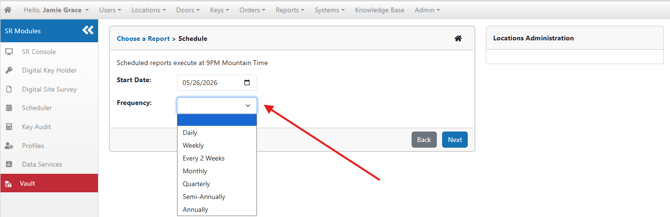
Select when you'd like to begin receiving this report and how often you'd like it sent, then click Next
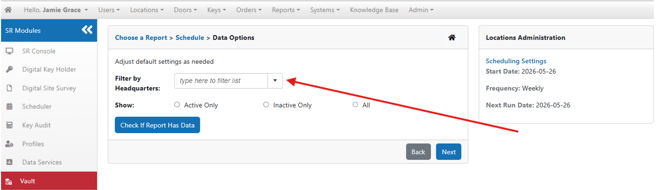
First, you'll need to select a Headquarters Location for this Report to be based on - This can be a Parent Headquarters for all Locations within Security Records or a specific property with multiple out-buildings
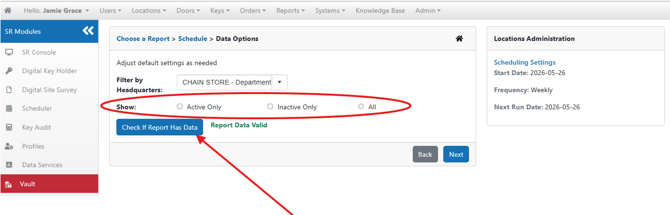
Then, you'll decide if you want to limit which Locations are included in the Report
Once confirmed, you'll want to ensure your selection has valid data available, then click Next
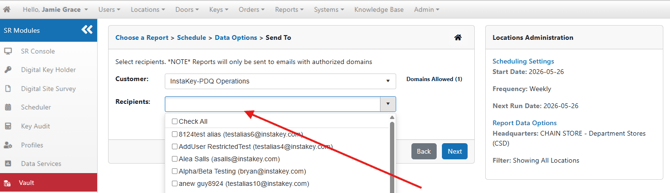
Select which existing Users you'd like to receive the results, then click Next
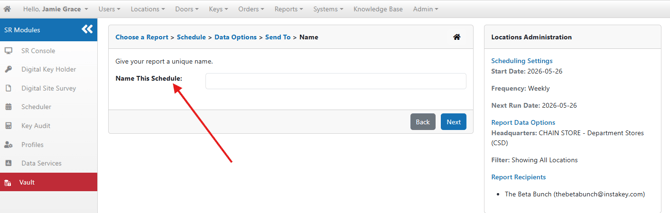
Name your report, then click Next
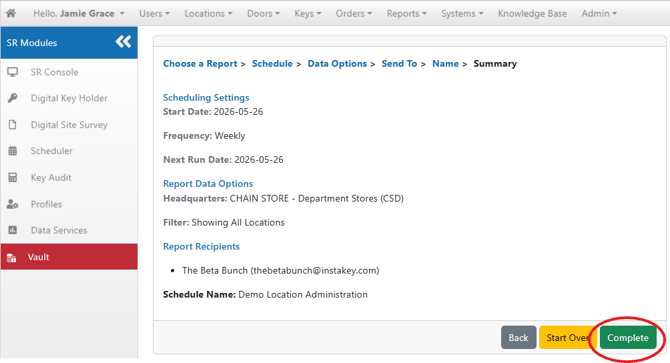
Confirm all your selections are accurate, then select Complete
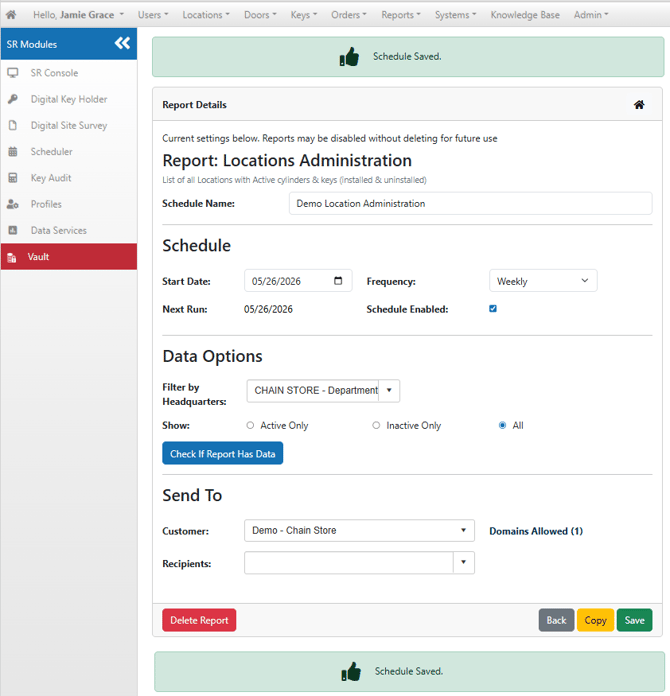
Once your Report is saved, you can make modifications on this page or return home to start a new Report
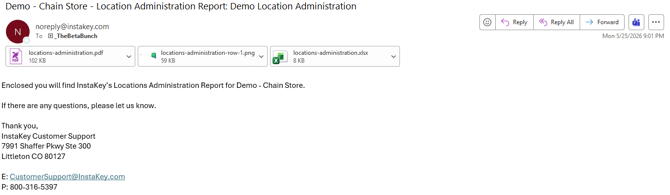
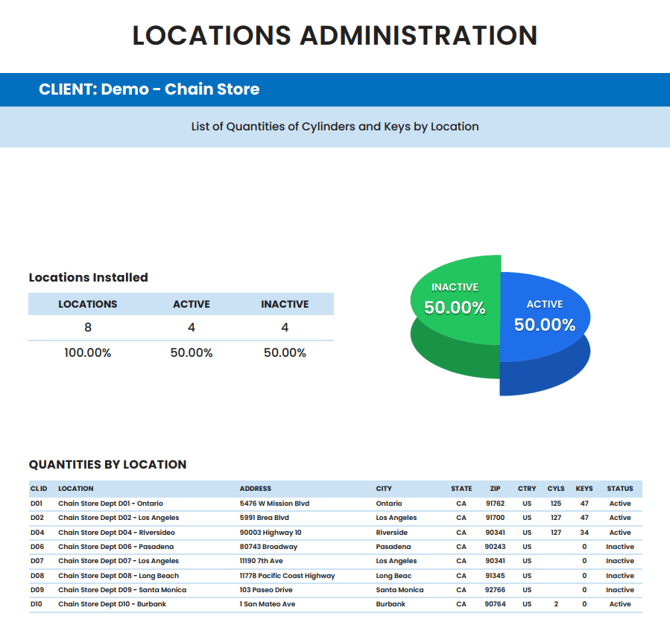
Once the Report runs, you will receive an email with two attachments - A PDF Version and an Excel Version of the Report Results. These emails will continue for the duration of the scheduled Report
PDF Version -
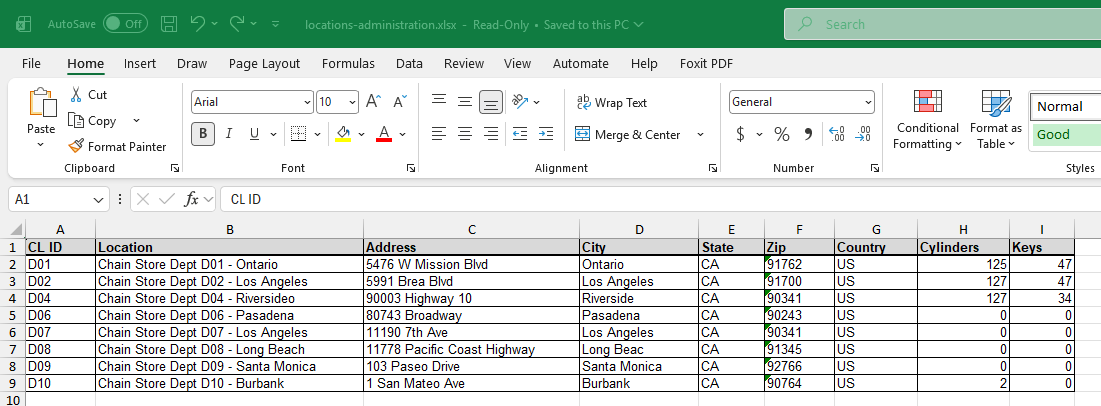
Excel Version -